
How to Schedule a Meeting in Outlook
How to Schedule a Meeting in Outlook
Outlook makes it easy to schedule meetings, invite attendees, and check when people are available. You can create a meeting from Outlook on the web, the desktop app, or a mobile device. The exact button names may vary slightly depending on your version.
Schedule a Meeting in Outlook on the Web or the New Outlook
- Open Outlook and select Calendar.
- Select New event or click a time slot on your calendar.
- Enter a clear meeting title.
- Add the attendees’ email addresses in the invite field.
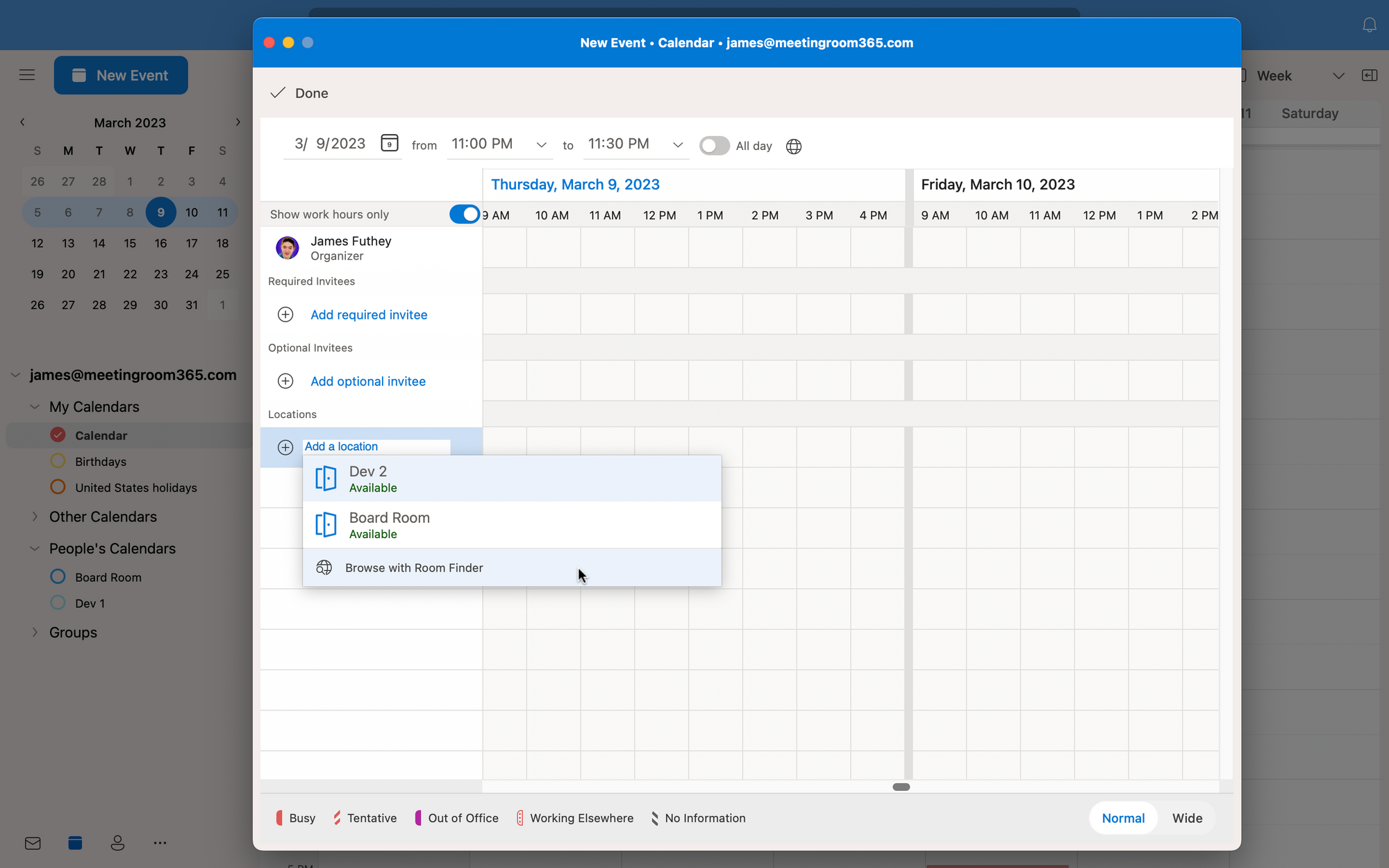
- Choose the date and start and end times. Add a location or select the option to make the meeting an online meeting, if available.
- Use Scheduling Assistant, if available, to check attendees’ availability and find a suitable time.
- Add an agenda or other details in the description.
- Review the invitation, then select Send.
The meeting will appear on your calendar, and Outlook will send an invitation to the attendees. Their responses—such as Accept, Tentative, or Decline—may appear in the meeting details.
Schedule a Meeting in Classic Outlook for Windows
- Open the Calendar view.
- Select New Meeting from the Home tab.
- Enter the attendees in the To field, then add a subject, location, and meeting details.
- Set the start and end times. Select Scheduling Assistant to compare availability and adjust the time as needed.
- Select Send to distribute the invitation.
If you’re using Outlook for Mac, open Calendar and create a new event or meeting. Add attendees, set the time, include any relevant details, and send the invitation.
Add an Online Meeting
If your work or school account includes Microsoft Teams, you may be able to add a Teams meeting directly while creating the Outlook invitation. Turn on the Teams meeting option, then send the invite. Attendees can use the meeting link in the invitation to join.
For another video-conferencing service, add its meeting link and joining instructions to the location or description field.
Set Up a Recurring Meeting
To schedule a meeting that repeats, choose the recurrence option—often labeled Make recurring or Repeat—when creating the event. Select a pattern, such as weekly or monthly, and set an end date if needed. Check the dates before sending, especially around holidays or schedule changes.
Change or Cancel a Meeting
To update a meeting, open it from your calendar, make the changes, and send an update to attendees. If you change the time or location, include a short note explaining the change.
To cancel a meeting, open the event and select Cancel meeting or delete it. When prompted, send the cancellation notice so attendees know the meeting is no longer taking place.
Tips for Better Meeting Invitations
- Choose a descriptive title: Make the meeting’s purpose easy to understand.
- Include an agenda: List the topics to cover and any preparation attendees should complete.
- Check time zones: Confirm the displayed time zone when inviting people in different locations.
- Invite only necessary attendees: This makes it easier to find a time that works for everyone.
- Review the details before sending: Double-check the date, time, attendee list, and meeting link.
A well-organized Outlook invitation gives attendees the information they need to prepare and join on time. Before sending, take a moment to confirm that the meeting details are complete and accurate.
Top 6 FAQs for Scheduling Meetings in Outlook
- How do I schedule a meeting in Outlook?
- How do I invite someone to an Outlook meeting?
- How do I check attendees’ availability in Outlook?
- How do I schedule a recurring meeting in Outlook?
- How do I add a Microsoft Teams link to an Outlook meeting?
- How do I reschedule or cancel a meeting in Outlook?
How do I schedule a meeting in Outlook?
To schedule a meeting in Outlook, open Calendar and select New event or New Meeting. Add a title, invitees, date and time, and any location or online meeting link. Include an agenda or other helpful details, then select Send to add the meeting to your calendar and email invitations to attendees. If available, use Scheduling Assistant to check invitees’ availability before choosing a time.
How do I invite someone to an Outlook meeting?
To invite someone to an Outlook meeting, open the meeting in your calendar or create a new one, then enter their email address in the attendee or invite field. Add the meeting time, location or online link, and any helpful details, then select “Send” to email the invitation. If the meeting is already scheduled, save your changes and choose to send an update to attendees.
How do I check attendees’ availability in Outlook?
To check attendees’ availability in Outlook, create a meeting invitation and add their email addresses, then open Scheduling Assistant (or the scheduling view in your version of Outlook). The calendar grid shows when attendees are free or busy, helping you choose a time that works. Availability details depend on each person’s calendar-sharing permissions and your organization’s settings.
How do I schedule a recurring meeting in Outlook?
To schedule a recurring meeting in Outlook, create a new event or meeting and select the recurrence option, often labeled “Make recurring” or “Repeat.” Choose how often the meeting should occur—such as daily, weekly, or monthly—and set an end date or number of occurrences if needed. Add attendees and meeting details, then send the invitation. Before sending, review the dates and times to make sure the series fits everyone’s schedule.
How do I add a Microsoft Teams link to an Outlook meeting?
To add a Microsoft Teams link to an Outlook meeting, create a new event in Outlook and turn on the Teams meeting option before sending the invitation. In classic Outlook for Windows, select New Meeting and choose Teams Meeting; in Outlook on the web or the new Outlook, create a new event and enable the Teams meeting toggle. Add attendees, set the date and time, and select Send. Outlook will include a link and joining details in the invitation. If you don’t see the Teams option, make sure your work or school account has Teams enabled, or contact your organization’s IT support.
How do I reschedule or cancel a meeting in Outlook?
To reschedule a meeting in Outlook, open it from your calendar, change the date or time, and select “Send Update” to notify attendees. To cancel it, open the meeting and choose “Cancel Meeting” or delete the event, then send the cancellation notice when prompted. If you’re an attendee rather than the organizer, you may not be able to change or cancel the meeting for everyone; contact the organizer instead.


-
Tagged admission, championship meet, dining, entertainment, florida